This section details how button images function and how a developer should use/manipulate the button data. Button images used in a Geabaire board are stored on the services VM in the geabaire-api/icons directory. Please see Connecting to Host via SSH and Server List for more information. You will need to ask a server admin for access to the server.
The image system was reworked to accommodate the Geabaire Editor, which allows images to be sorted into collections and to change a given button's associated image. It also cuts down on storage, as there will only ever be one instance of an image in every collection (excluding the Base collection) that can point to multiple boards' buttons.
High-Level Explanation
As stated in the previous section, a button may have an image field, just consisting of a UUID to identify the button.
On the VM, the buttons are stored according to this UUID, e.g. geabaire-api/icons/<UUID>.webp.
Note: Images should be 32x32 resolution, in WEBP format.
Requesting an Image
To render buttons, the client makes a GET request to the Geabaire API in the form of https://api.geabaire.abair.ie/v1/images/:id.webp.
This is as far as requesting an image goes. Where the developer needs to be more careful while creating or deleting images (or changing an image ID).
Creating and Deleting Images
For the purposes of the Geabaire Editor, images are also referenced by our Supabase Project.
This connection is where one must be careful when editing image data. The relevant DB tables work as follows:
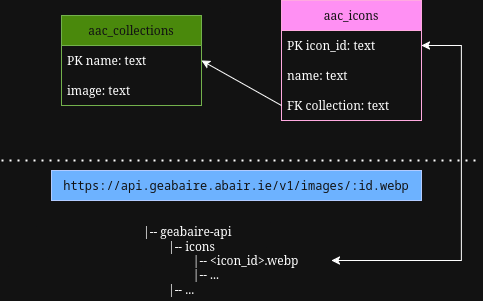 .
.
Using the information below, you can use SQL queries to locate images and perform operations on them.
aac_collections
name: The name of the collection, e.g. ARASAAC, Base.image: The thumbnail URL for the given collection.
aac_icons
icon_id: The UUID as stored on the VM.name: The name used to find the image.collection: The name of the collection, e.g. ARASAAC, Base. Foreign key toaac_collections.name.
Best Practices
When new images are added to the VM, they must have an entry in aac_icons.
Similarly, when deleting images from the VM, you must also remove the entry in the aac_icons table.
When creating a new collection of images, it is important to add it to aac_collections and make sure that any image you add to aac_icons matches the name of this collection exactly, i.e. aac_collections.name is the same as aac_icons.collection.
Example: Adding an image
- Choose an image to be added to the VM.
- Generate a UUID for this image (do not lose this UUID).
- Upload image to
geabaire-api/icons/as<UUID>.webp. - Insert an entry into the Supabase table
aac_iconswithicon_idas the UUID,nameas a semantically appropriate label, andcollectionas a string matchingaac_collections.name.